Try Contextual

Try Contextual as a firm

How a firm works with its clients on Contextual Exchange, step by step, on the real app. Fernhill Lettings is a made-up letting agent; Robin is its made-up client, renewing a lease.

Using Contextual for your own mail? Try it for your mail. Building on Contextual? Try it as a developer.

Fernhill Lettings, Maya and Robin are made up. Every screen is the real app, the firm on a computer and the client on a phone.

Setting up your firm · 1 of 1

How to set up your firm

  1. A firm is made once, with its name, colour and first branch; the person who makes it is its owner.
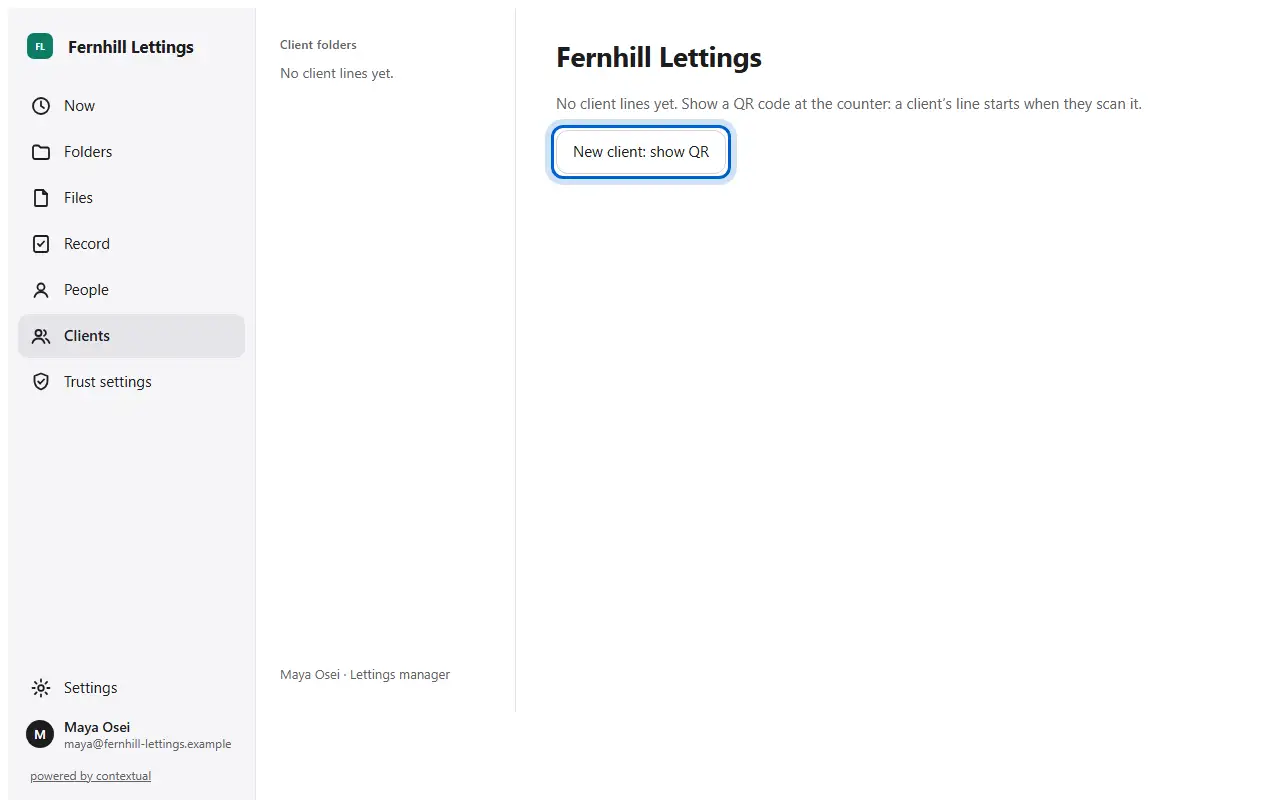
  2. Your desk opens on Client folders, in your firm's own name and colour.
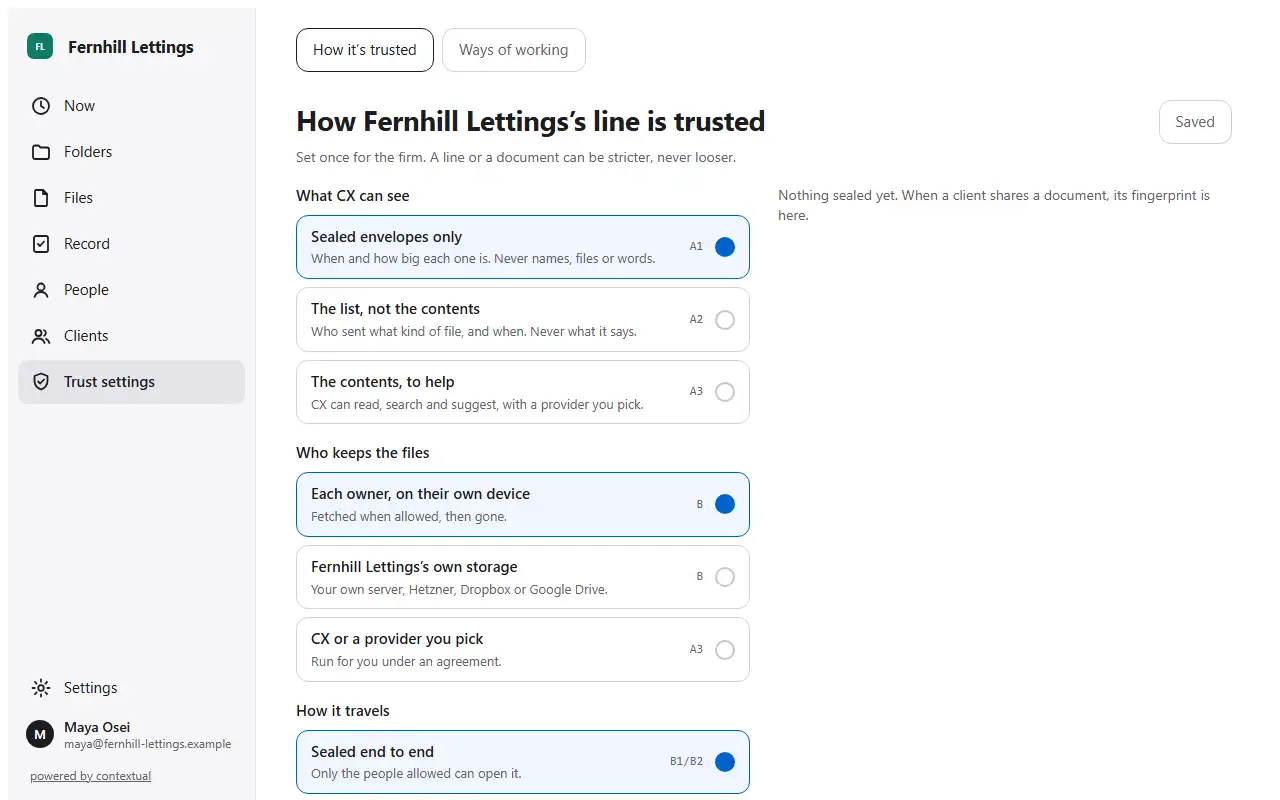
  3. Trust settings are set once for the firm. A line or a document can be stricter, never looser.
  1. Step 1 · drawn

    Drawn: firms are made through Contextual's API for now, with no sign-up screen. This is the real request and its answer.

  2. Step 2Your desk opens on Client folders, in your firm's own name and colour.
  3. Step 3Trust settings are set once for the firm. A line or a document can be stricter, never looser.
Your first client · 1 of 3

How to start a line at the counter

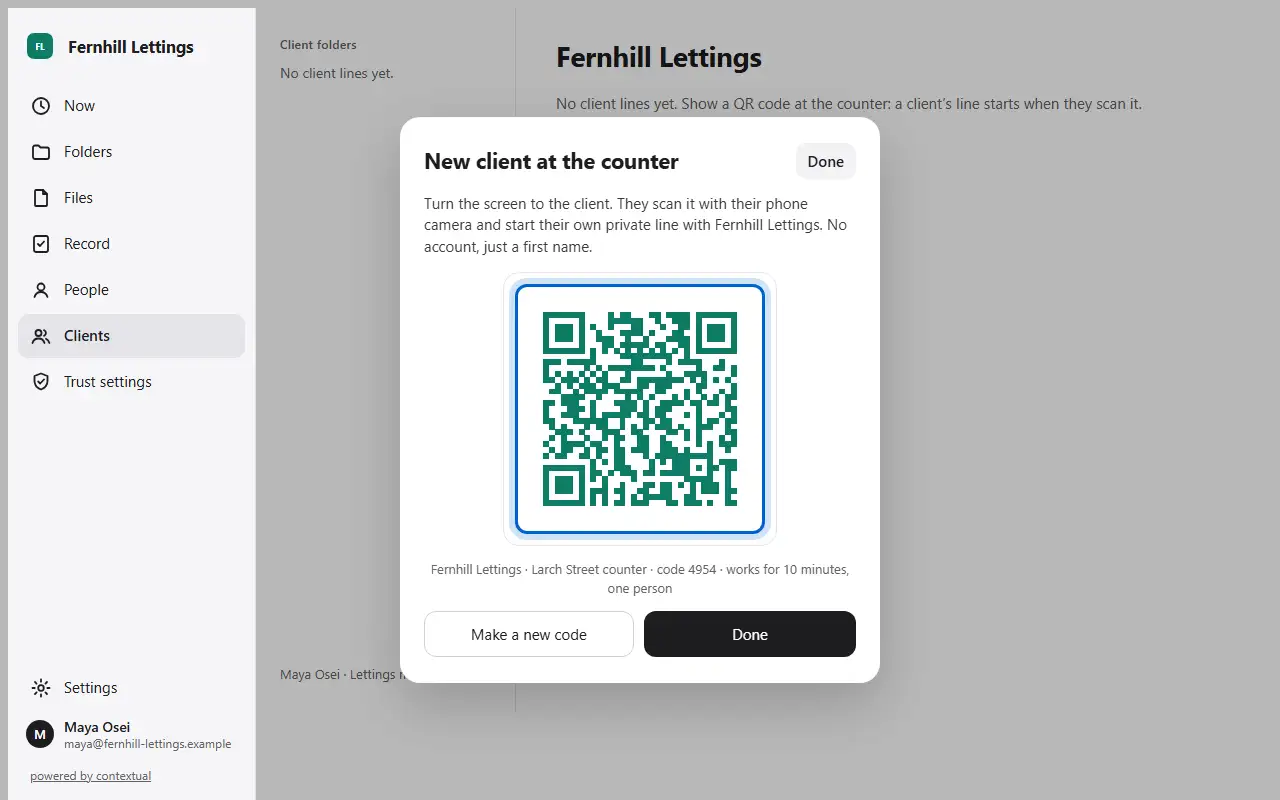
  1. Press New client: show QR, and turn the screen to the client.
  1. Step 1Press New client: show QR, and turn the screen to the client.
Your first client · 2 of 3

How a client joins with a first name

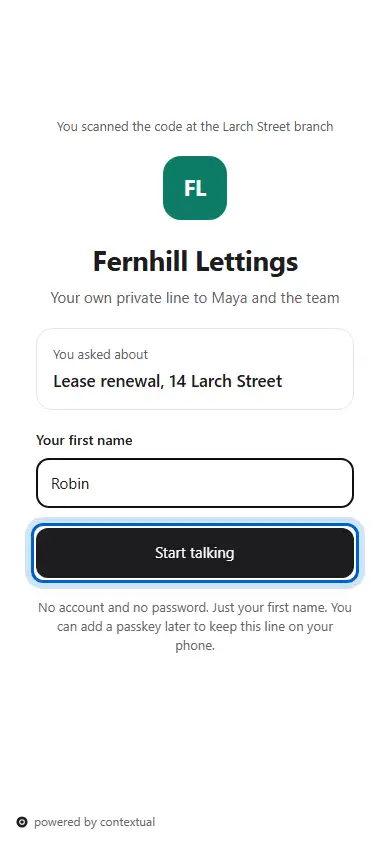
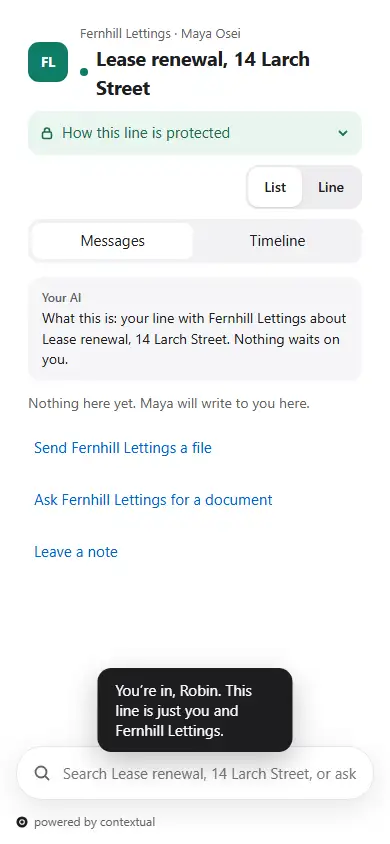
  1. The client scans the code, types a first name and presses Start talking. No account, no password.
  2. They are in: the line is just them and your firm.
  1. Step 1The client scans the code, types a first name and presses Start talking. No account, no password.
  2. Step 2They are in: the line is just them and your firm.
Your first client · 3 of 3

How to see your new client

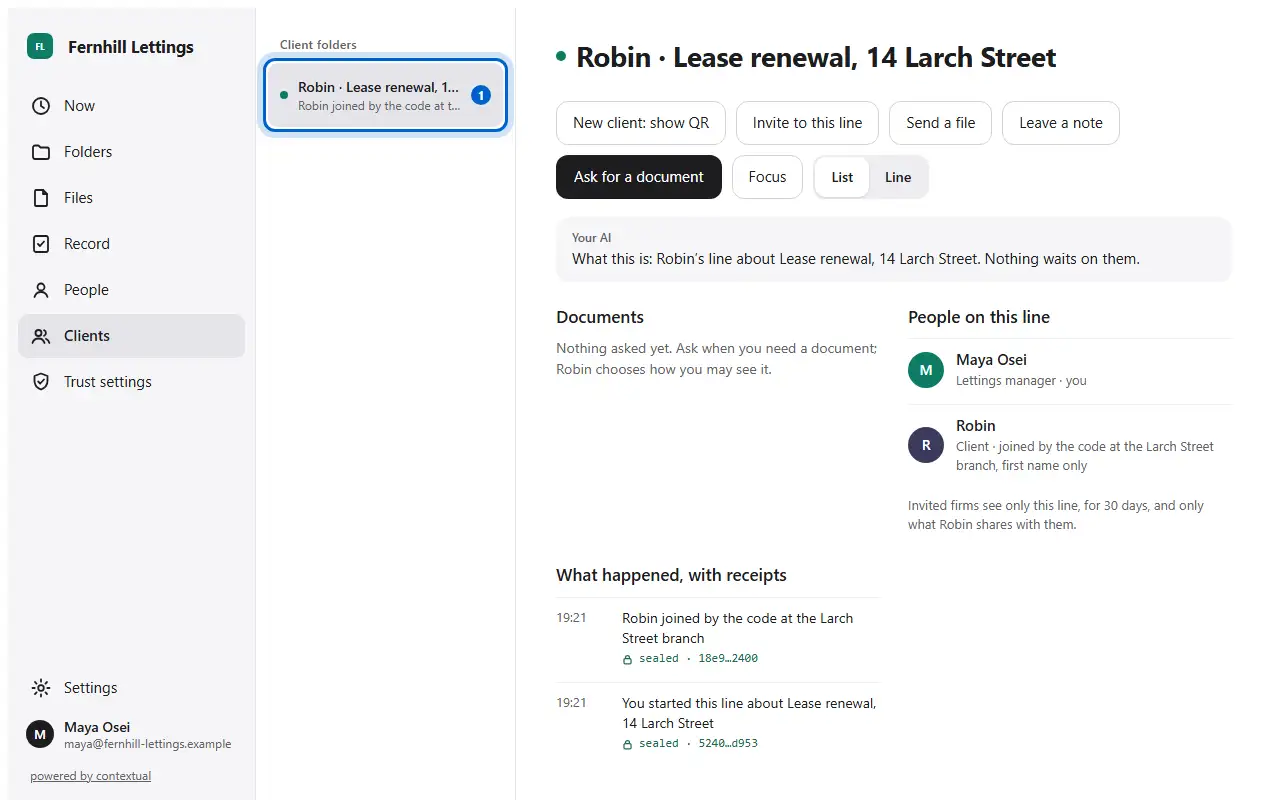
  1. The new line is in your Client folders at once, with how they joined.
  1. Step 1The new line is in your Client folders at once, with how they joined.
Everyday work on a line · 1 of 3

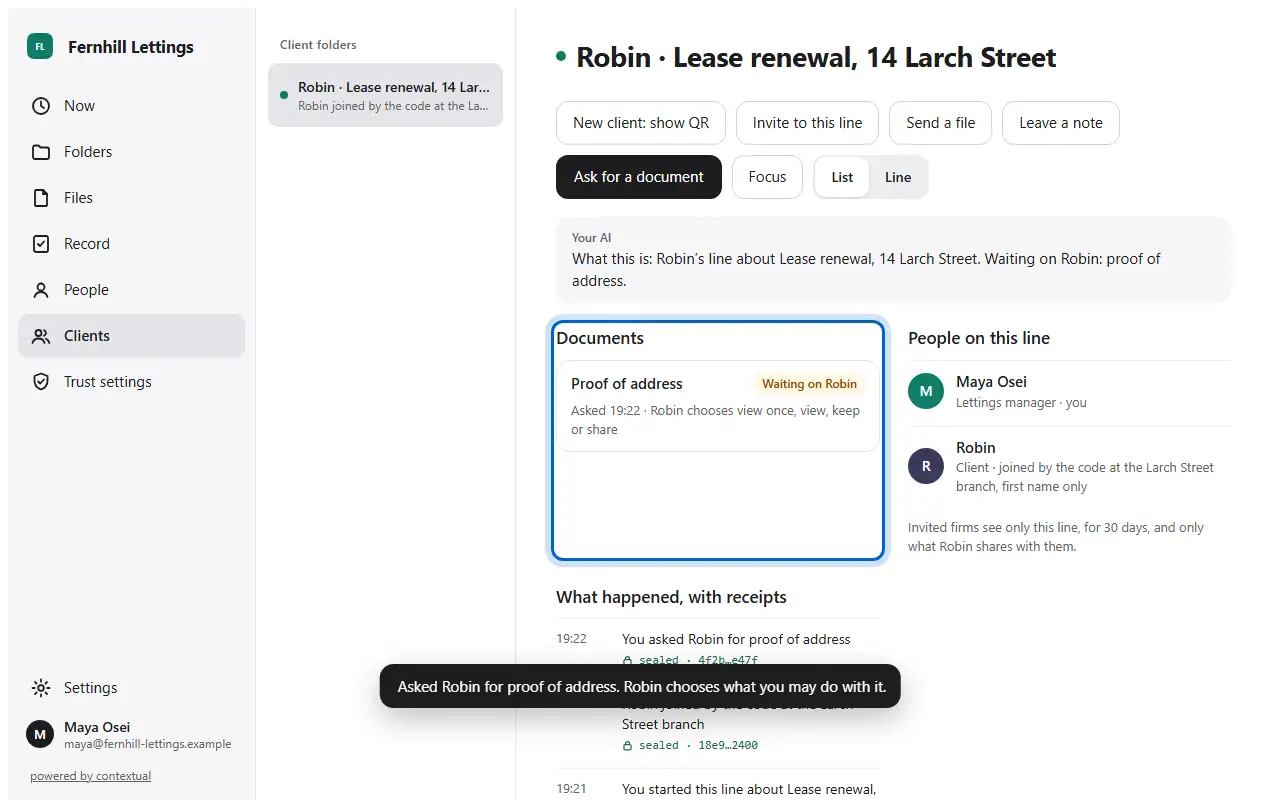
How to ask a client for a document

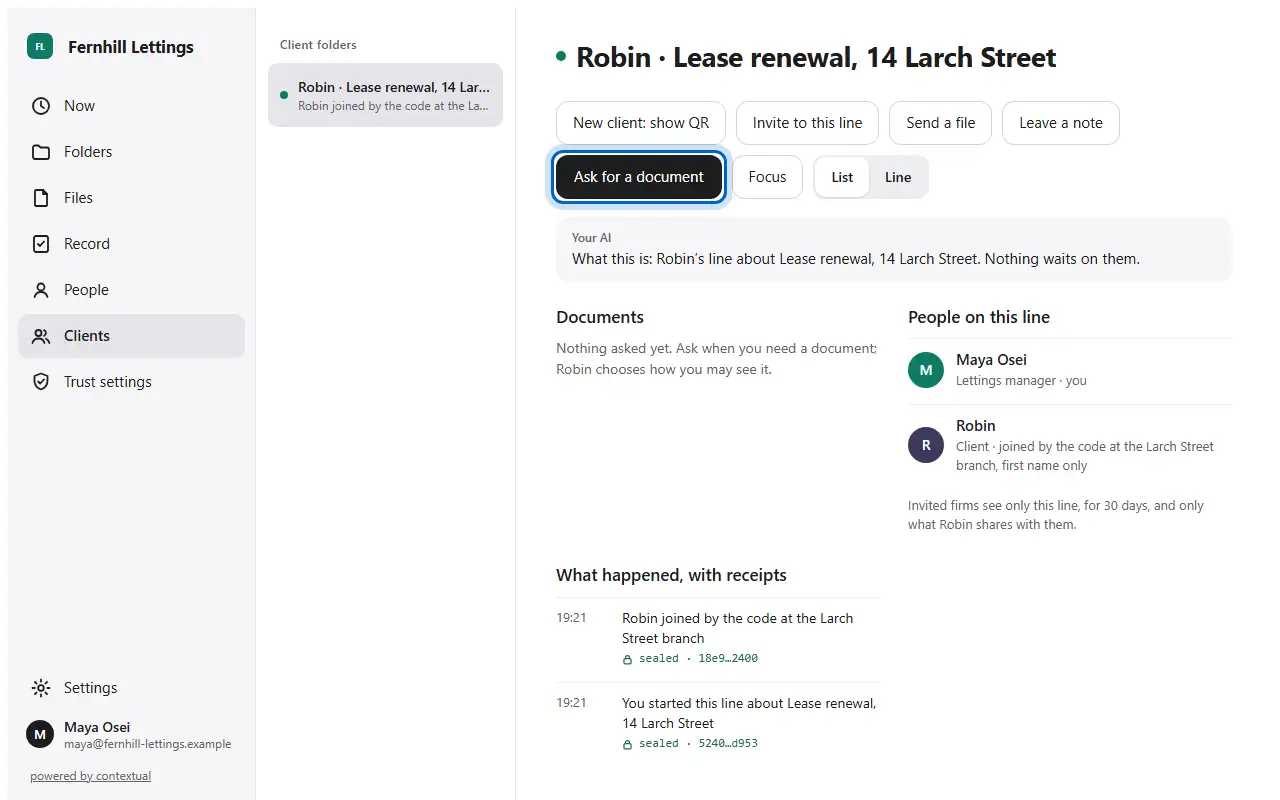
  1. Open the client's line and press Ask for a document.
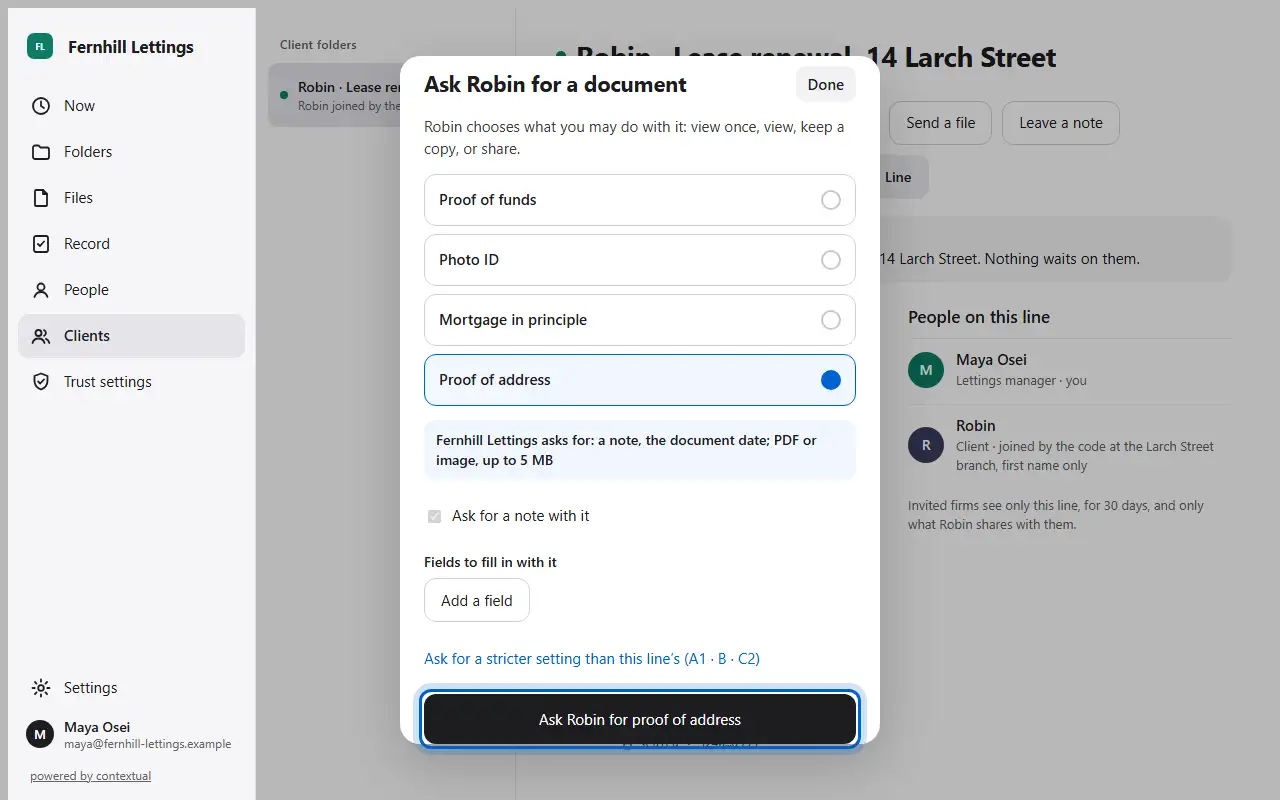
  2. Choose which document. The client chooses what you may do with it.
  3. The line says it is waiting on them.
  1. Step 1Open the client's line and press Ask for a document.
  2. Step 2Choose which document. The client chooses what you may do with it.
  3. Step 3The line says it is waiting on them.
Everyday work on a line · 2 of 3

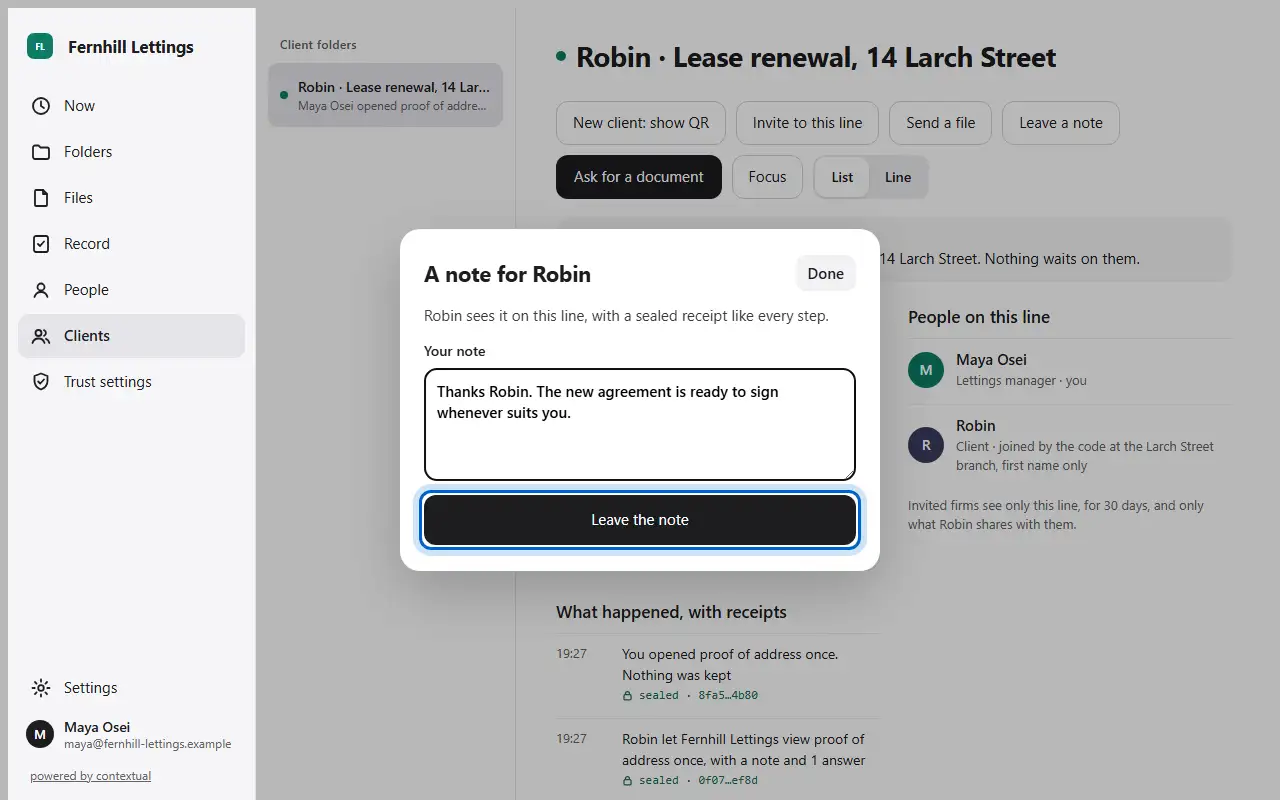
How to leave a note

  1. Press Leave a note, write it and press Leave the note.
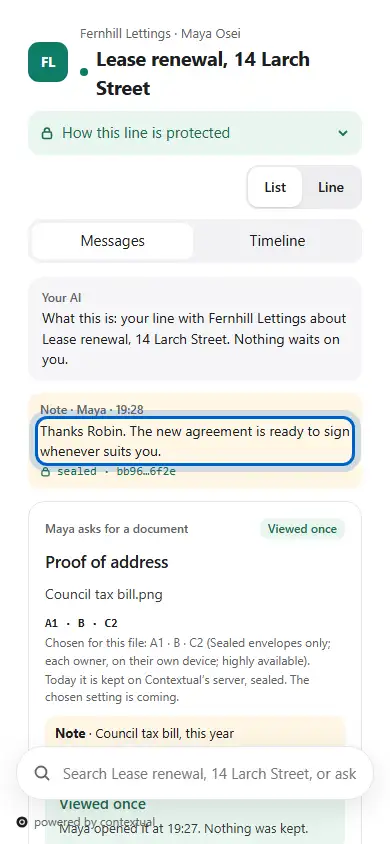
  2. The client sees it on their line.
  1. Step 1Press Leave a note, write it and press Leave the note.
  2. Step 2The client sees it on their line.
Everyday work on a line · 3 of 3

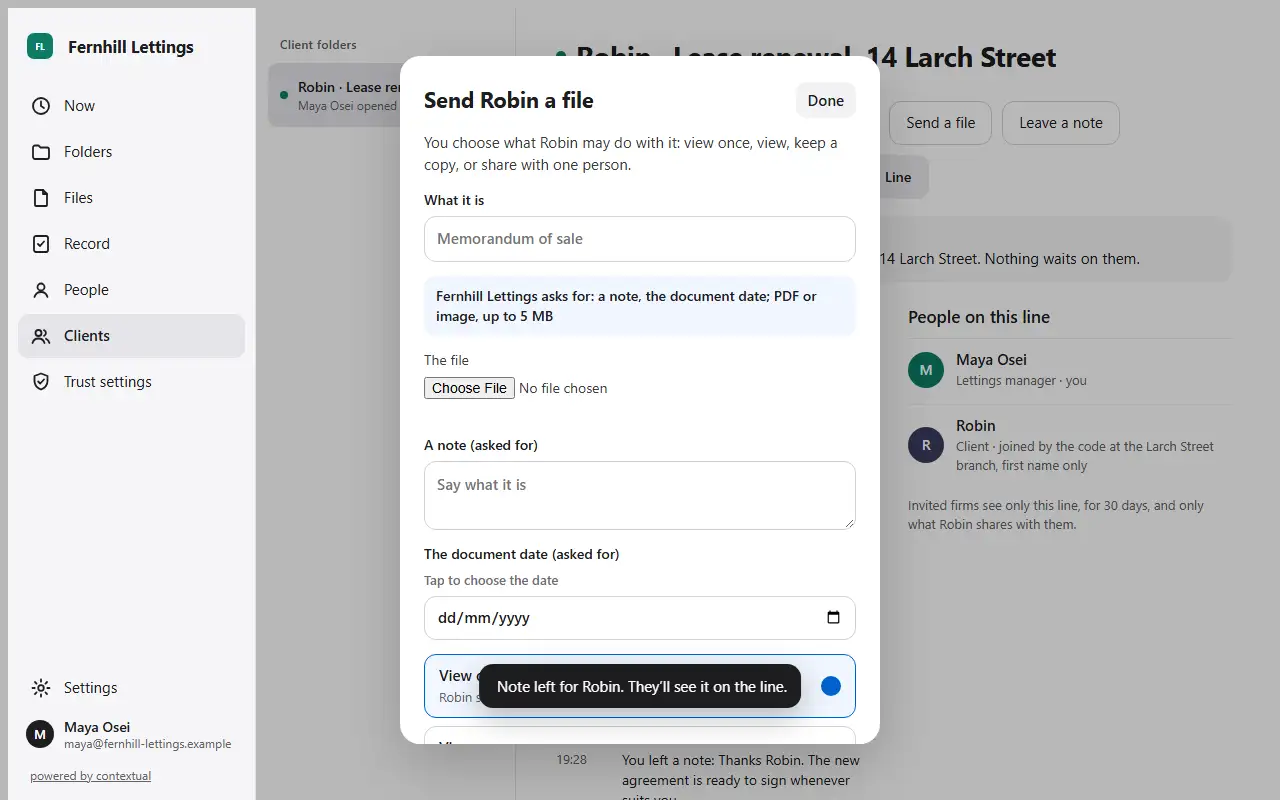
How to send a client a file

  1. Press Send a file, choose it, and choose what they may do with it.
  1. Step 1Press Send a file, choose it, and choose what they may do with it.
Ways of working · 1 of 2

How to set your firm's ways of working

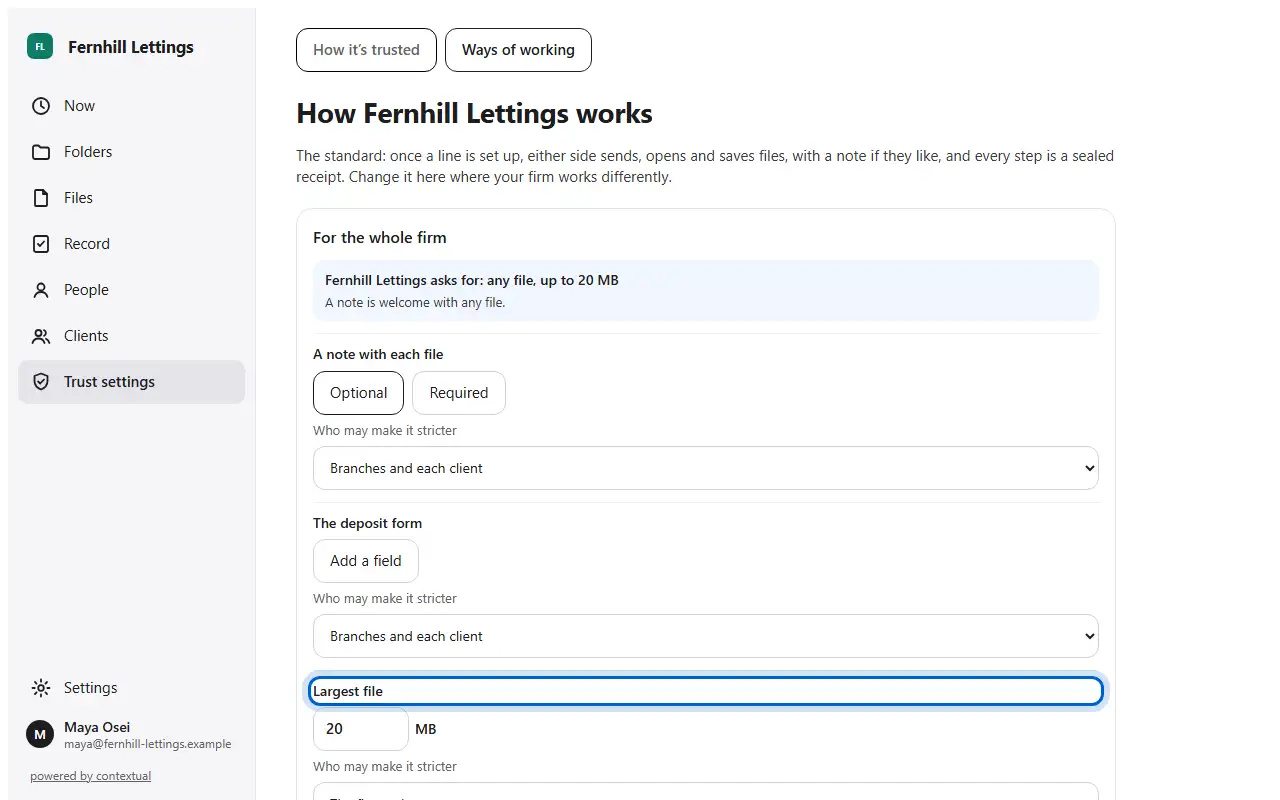
  1. In Trust settings, open Ways of working: what you ask for with each file.
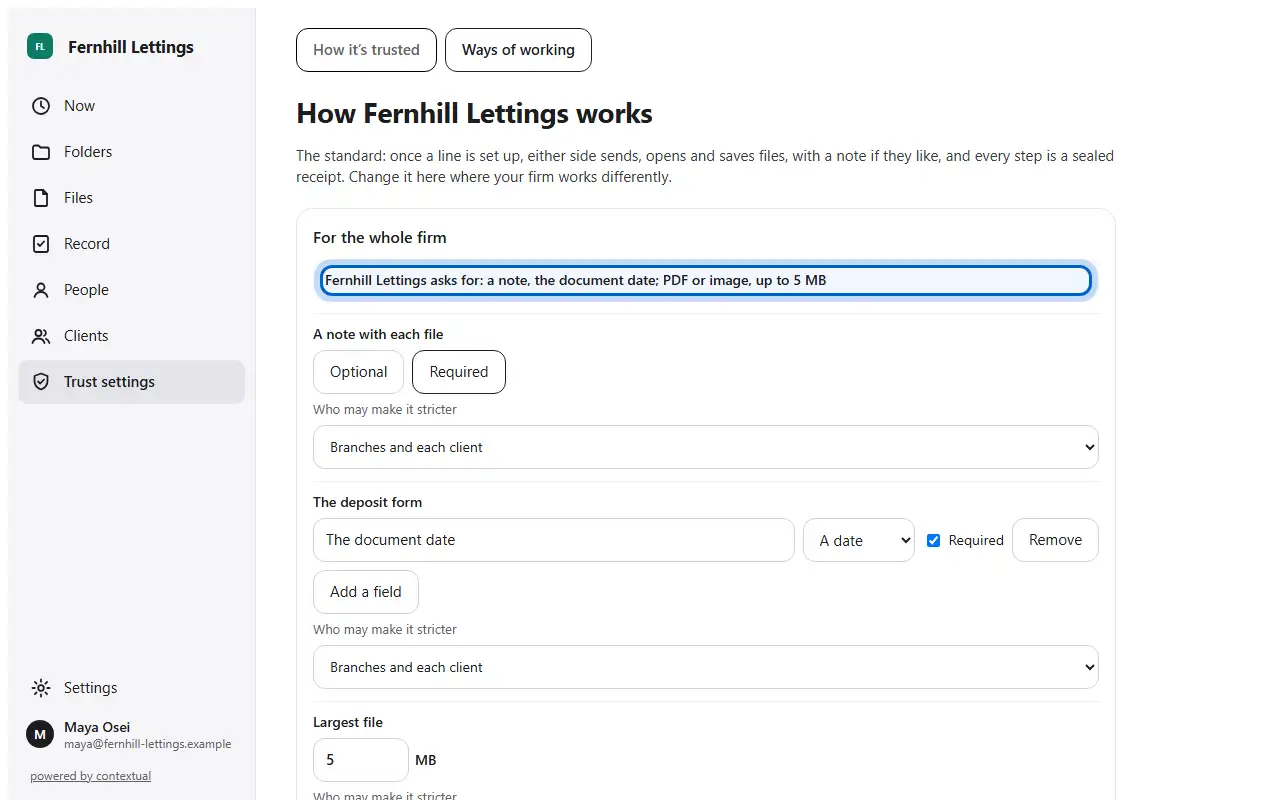
  2. Ask for a note and the document date, and set the largest file and the kinds of file.
  1. Step 1In Trust settings, open Ways of working: what you ask for with each file.
  2. Step 2Ask for a note and the document date, and set the largest file and the kinds of file.
Ways of working · 2 of 2

How to set ways of working for one client

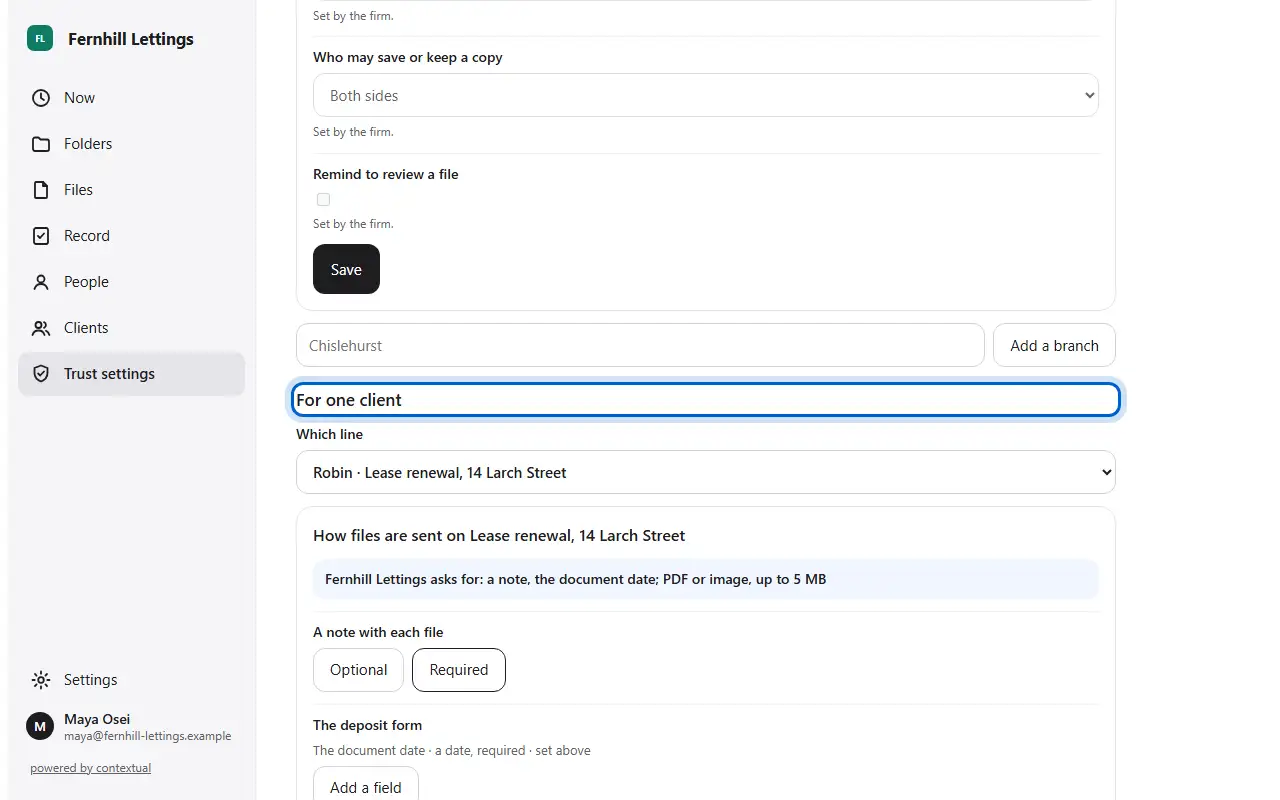
  1. Under For one client, make one line stricter than the firm, never looser.
  1. Step 1Under For one client, make one line stricter than the firm, never looser.
Documents and trust · 1 of 3

How a client sends what you asked for

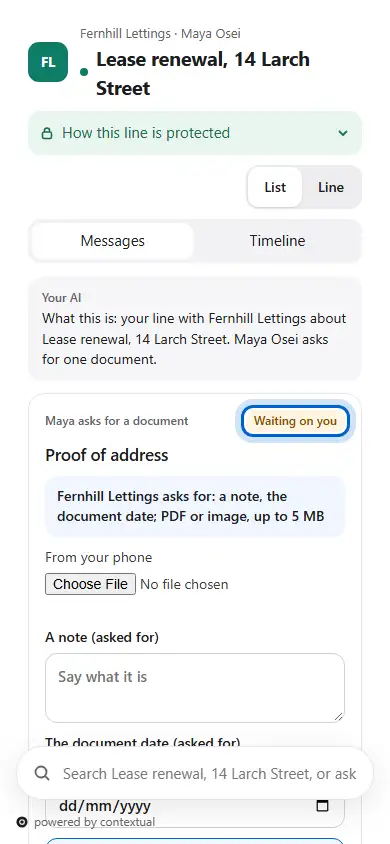
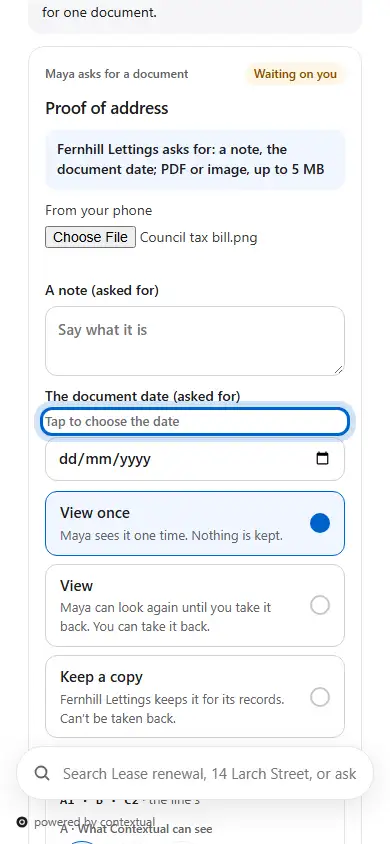
  1. On their phone, the client sees what you asked for, and what your firm asks for with it.
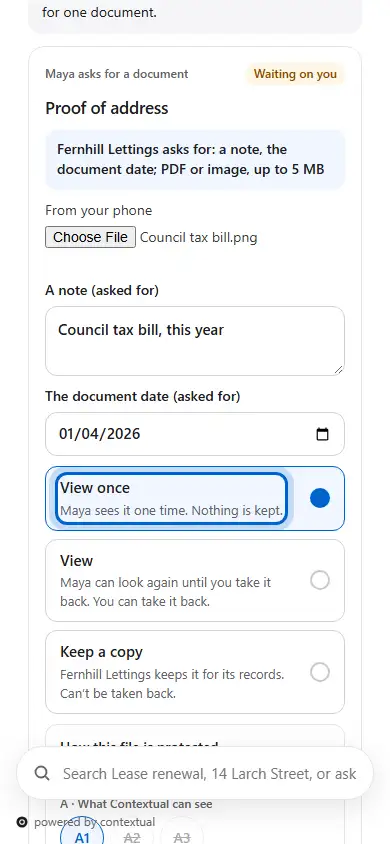
  2. They choose the file and fill in what you asked for. An empty date says what to do.
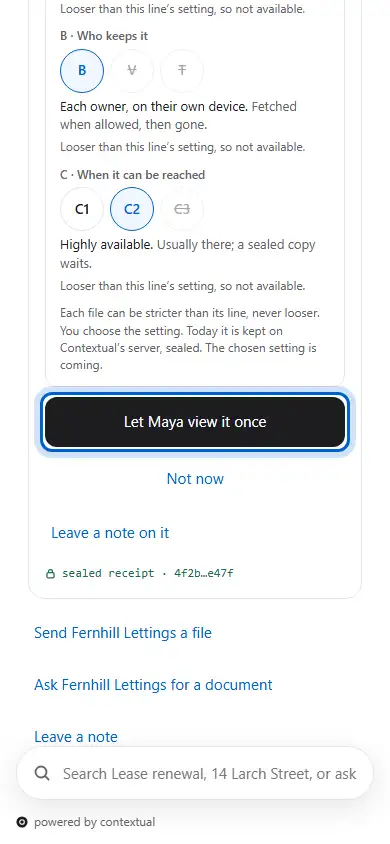
  3. They choose how it is kept and seen: A, B and C, never looser than the line.
  4. They choose View once: you see it one time, and nothing is kept.
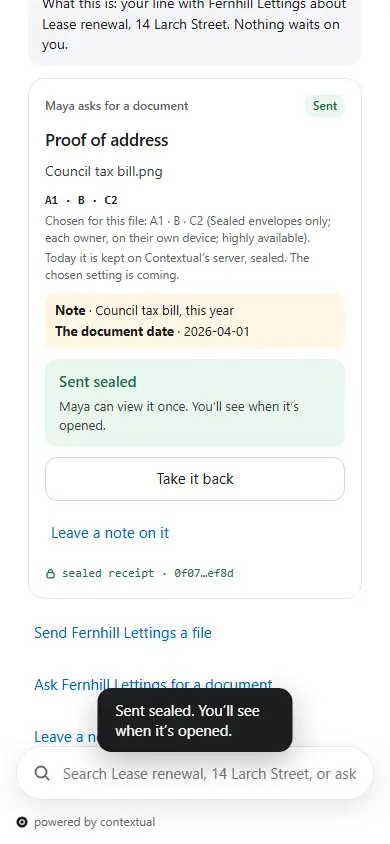
  5. It is sent sealed, and they can still take it back.
  1. Step 1On their phone, the client sees what you asked for, and what your firm asks for with it.
  2. Step 2They choose the file and fill in what you asked for. An empty date says what to do.
  3. Step 3They choose how it is kept and seen: A, B and C, never looser than the line.
  4. Step 4They choose View once: you see it one time, and nothing is kept.
  5. Step 5It is sent sealed, and they can still take it back.
Documents and trust · 2 of 3

How to open a view-once file

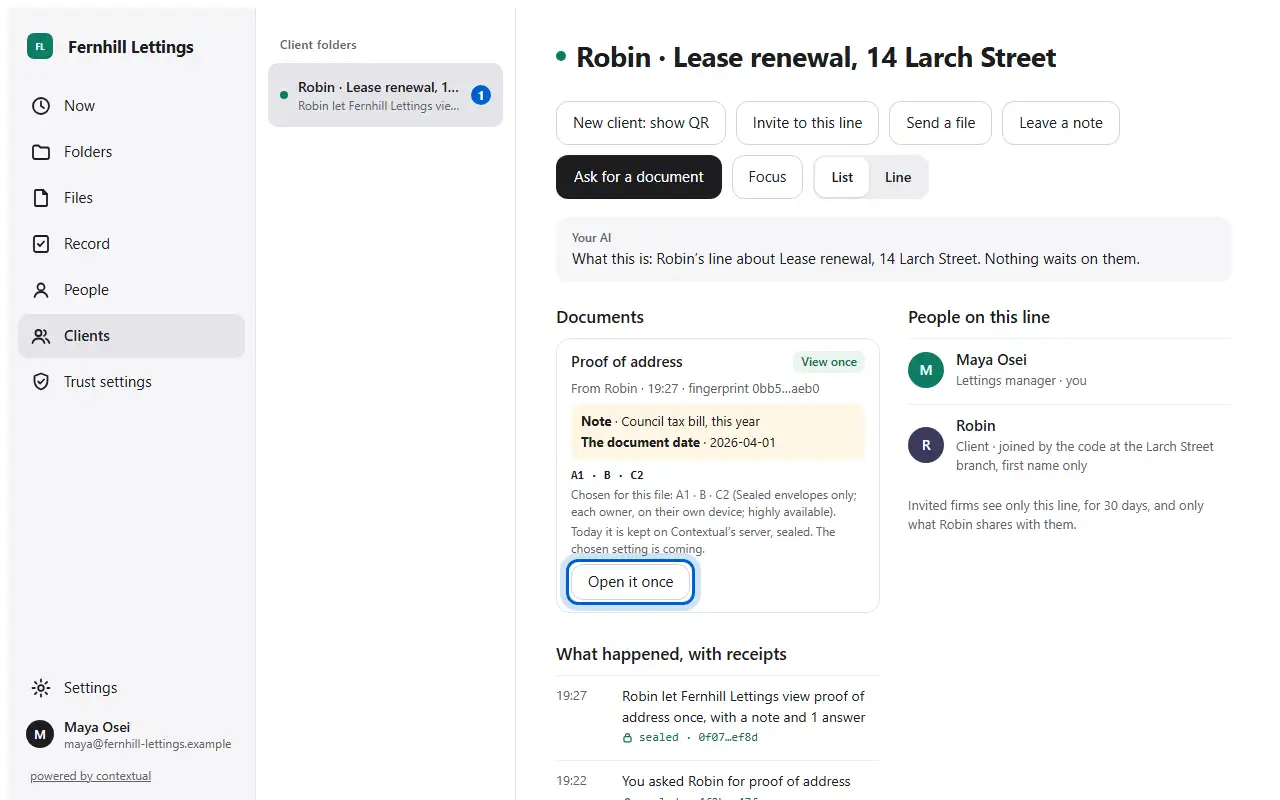
  1. In Documents, press Open it once.
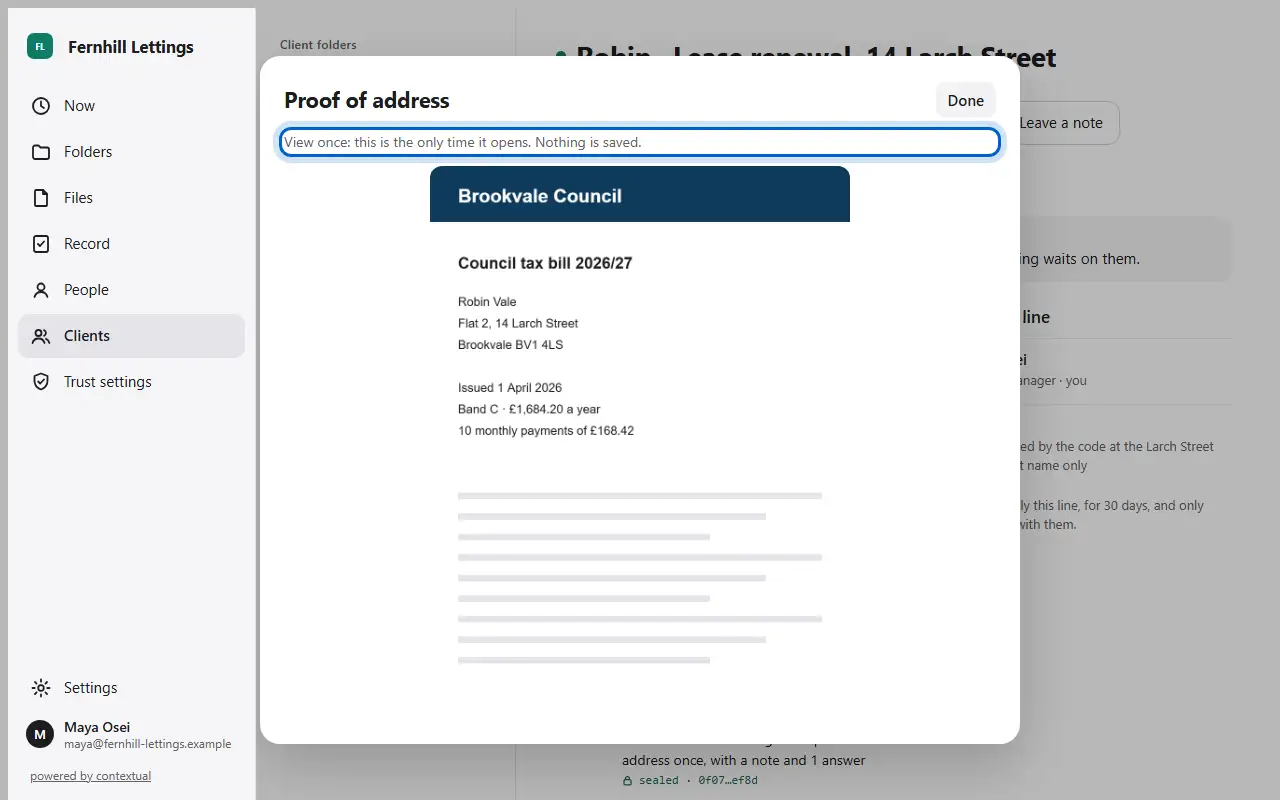
  2. It opens on the page and is never saved.
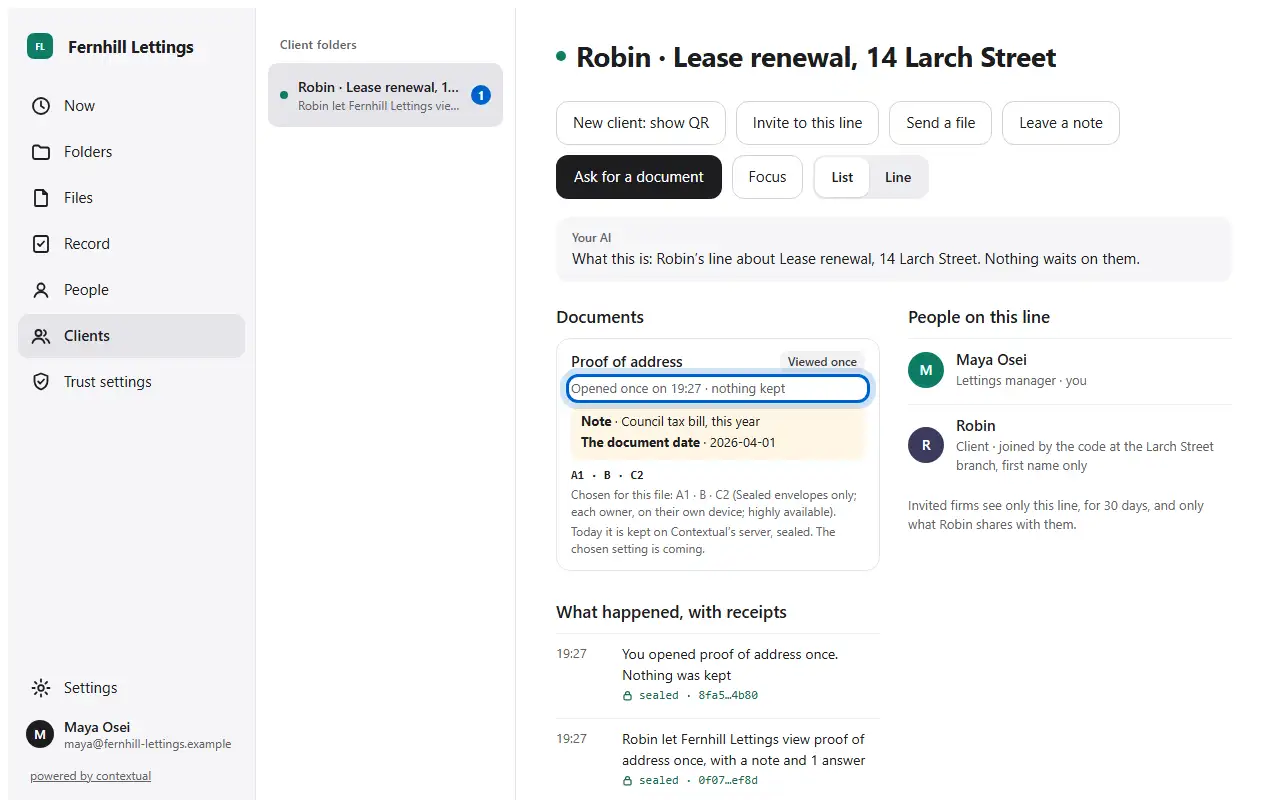
  3. Afterwards it says it was opened once, and nothing was kept. It can't be opened again.
  1. Step 1In Documents, press Open it once.
  2. Step 2It opens on the page and is never saved.
  3. Step 3Afterwards it says it was opened once, and nothing was kept. It can't be opened again.
Documents and trust · 3 of 3

How to choose how your firm's lines are trusted

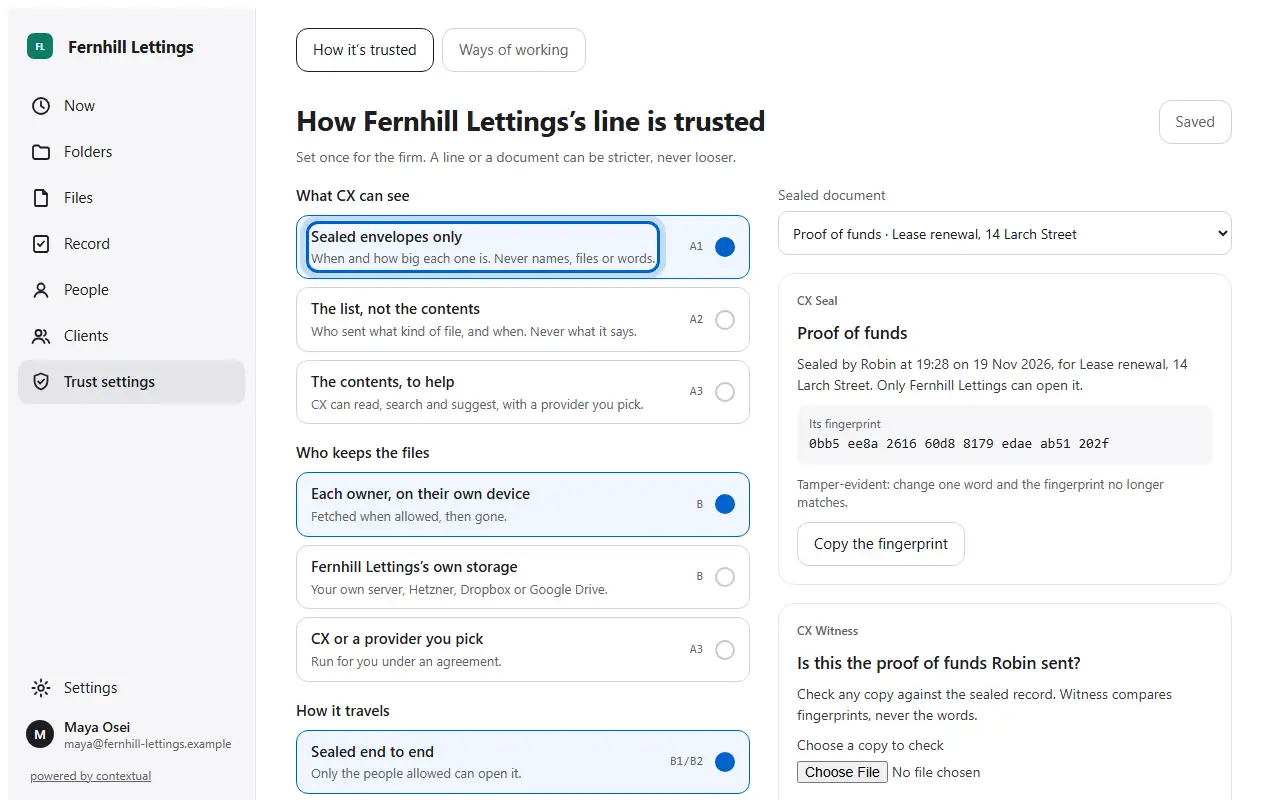
  1. In Trust settings, choose what Contextual can see, who keeps the files, and how they travel.
  1. Step 1In Trust settings, choose what Contextual can see, who keeps the files, and how they travel.
Records and receipts · 1 of 2

How to see what happened, with receipts

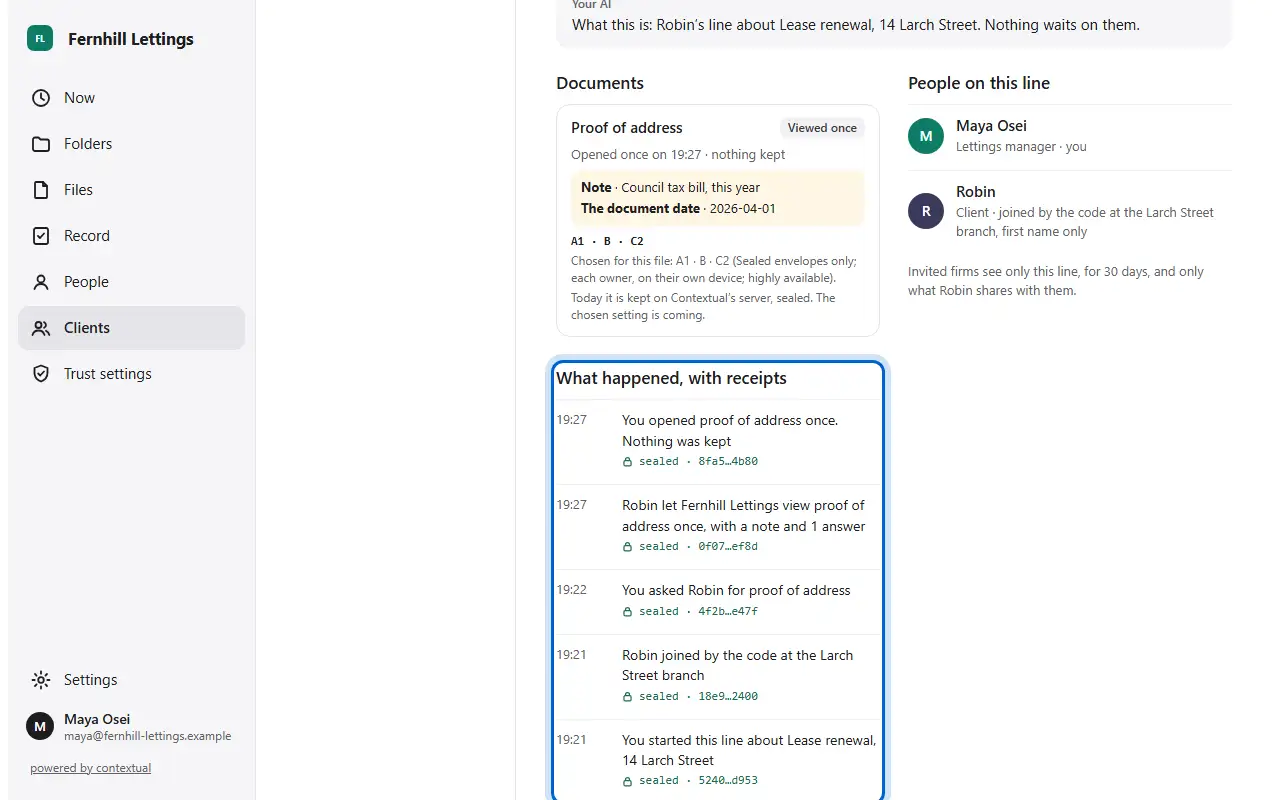
  1. On the line, What happened lists every step, each with its sealed receipt.
  1. Step 1On the line, What happened lists every step, each with its sealed receipt.
Records and receipts · 2 of 2

How to check a copy with Witness

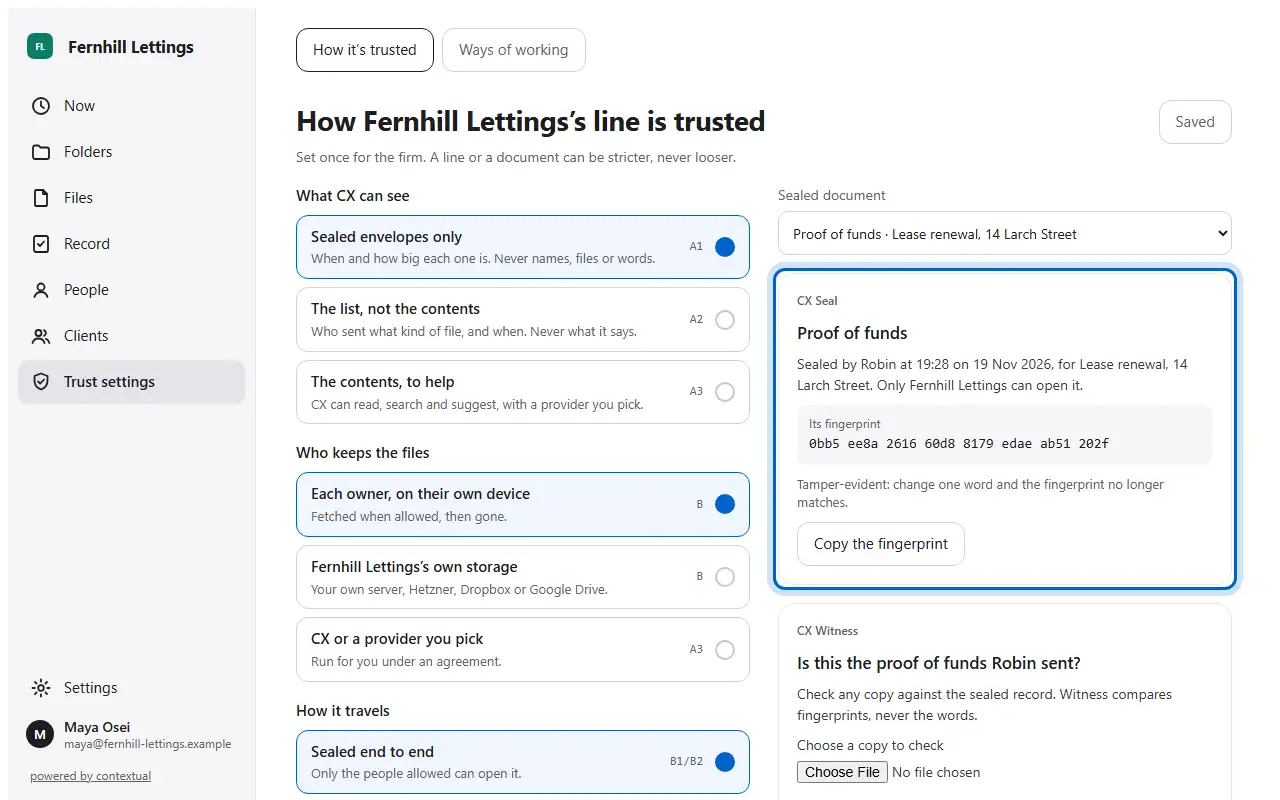
  1. Every sealed document has a fingerprint. Change one word and it no longer matches.
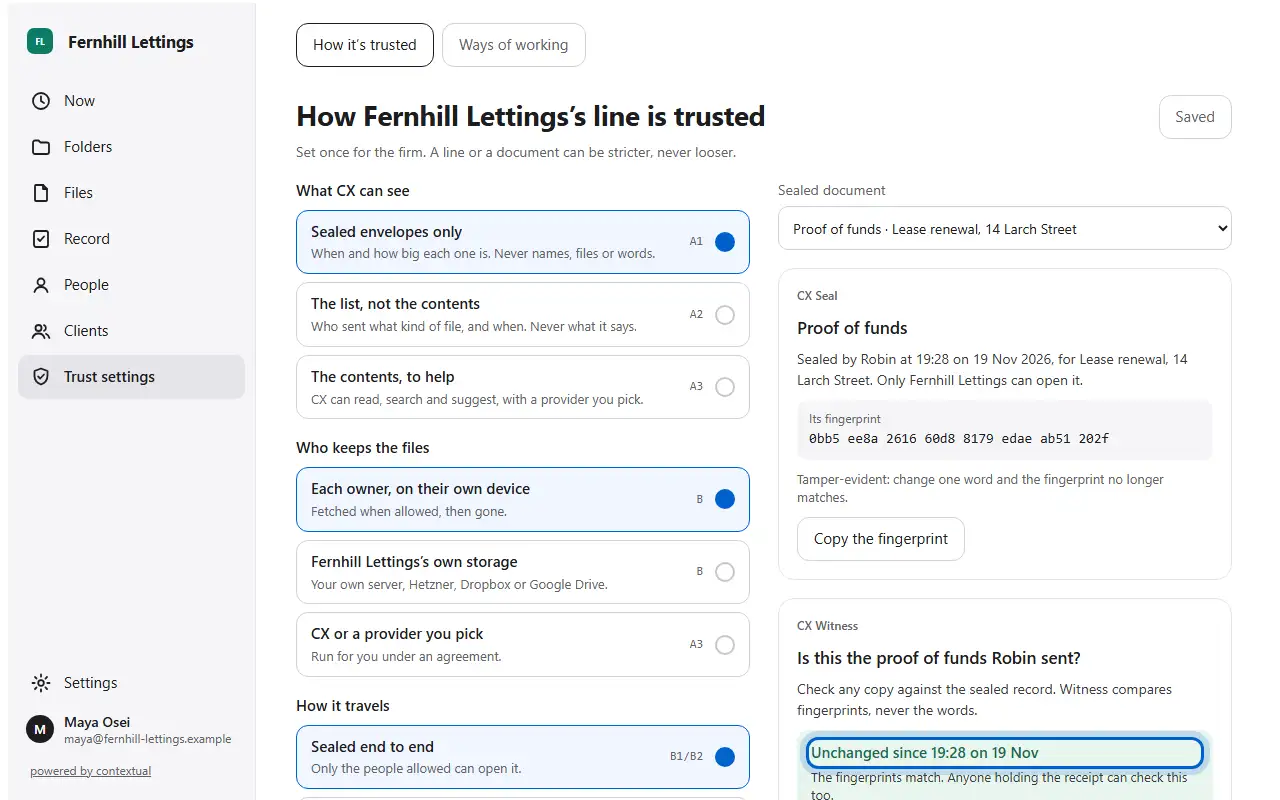
  2. Choose any copy: Witness says whether it is unchanged since it was sealed.
  1. Step 1Every sealed document has a fingerprint. Change one word and it no longer matches.
  2. Step 2Choose any copy: Witness says whether it is unchanged since it was sealed.
Recovery · 1 of 2

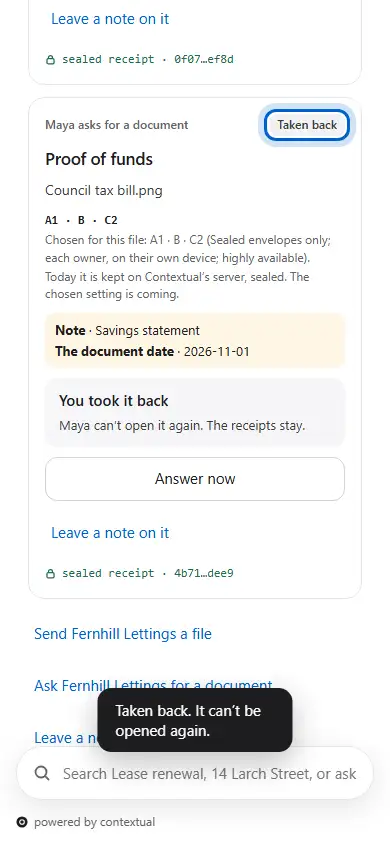
How a client takes a file back

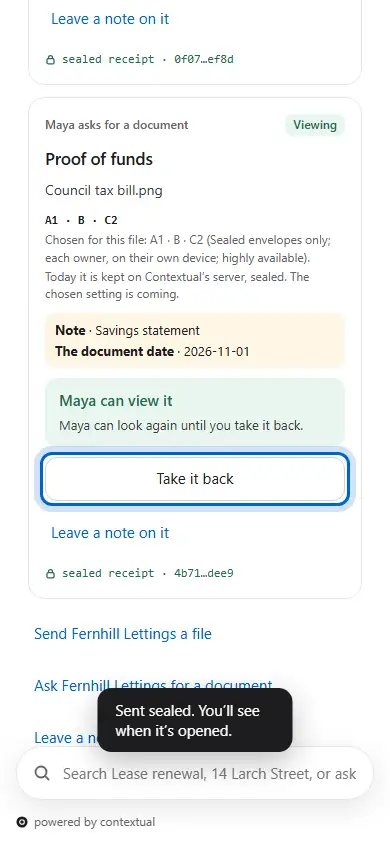
  1. A file they let you view can be taken back: they press Take it back.
  2. You can't open it again. The receipts stay.
  1. Step 1A file they let you view can be taken back: they press Take it back.
  2. Step 2You can't open it again. The receipts stay.
Recovery · 2 of 2

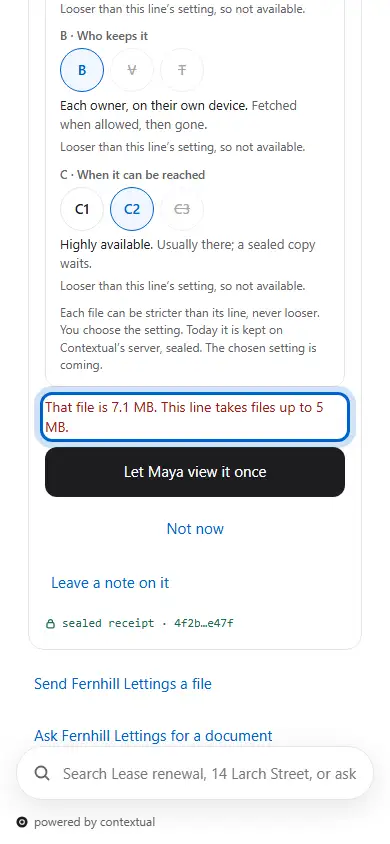
What happens when a file is too big

  1. A file bigger than your line takes is refused before anything is sent, and says why.
  1. Step 1A file bigger than your line takes is refused before anything is sent, and says why.

Now try it for real

Open the app, sign in, and bring in your own mail.